Previewing Feature Presets
You can preview feature presets in the features tree whenever you train a classifier or before you segment a dataset.
 Previewing Dataset Features
You should note that dataset feature previews are computed for the selected filter and for the visible portion of the image in the current view(s).
How to Preview a Dataset Feature
- Scroll to a representative image slice and then adjust the image as required.
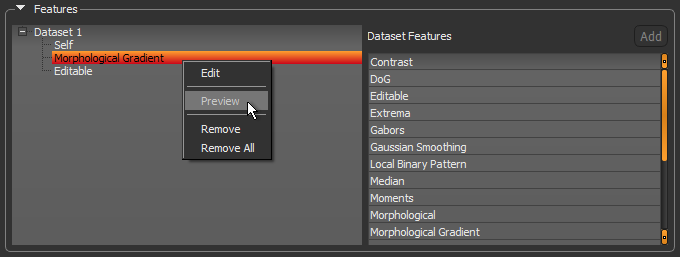
- Right-click the dataset feature you want to preview in the features tree and then choose Preview in the pop-up menu.
The Preview Trainer dialog appears.

- Do the following, as required:
- Choose a dataset in the Dataset drop-down menu.
- Choose a dataset feature in the Dataset Features drop-down menu.
- Select a filter in the Filters in Preset box.
Note You can preview dataset features on any dataset included in the model.
- Click Compute Preview at the bottom of the dialog.
The preview of the dataset feature appears in the workspace.
Note You can preview dataset features on different image slices.
- Select other filters within the dataset feature and preview the results, as required.
- If required, you can edit the settings of a filter in a dataset feature and save your modifications with your classifier model (see Editing Feature Presets).
 Previewing Region Features
You should note that region feature previews are computed for the selected region.
How to Preview Region Features
- Scroll to a representative image slice and then adjust the image as required.
- Right-click the region feature you want to preview in the features tree and then choose Preview in the pop-up menu.

The grid is computed automatically and the Preview Trainer dialog appears.

- Do the following, as required:
- Choose a dataset in the Dataset drop-down menu.
- Choose a dataset feature in the Dataset Features drop-down menu.
- Select a filter in the Filters in Preset box.
Note You can preview dataset features on any dataset included in the model.
- Do the following, as required:
- Choose a region feature in the Region Features drop-down menu.
- Select the region information you want to examine in the Region Information in Preset box.

- Make sure that Pick Mode is selected and then click the region you want to preview in the workspace.
Note The configured action for selecting regions is 'Select Regions in Trainer'. See Configurable Actions for more information about setting the configured actions for Dragonfly.
The selected region is highlighted in red and the region information is plotted or displayed in the Preview Trainer, as shown below.

Note You can use the Histogram tools to zoom and pan histograms, if required.
- Preview the feature preset in different regions on the current image or on different image slices, optional.
Note If you pan the image or change the image slice, you may have to compute the regions. To do so, click the Compute Regions button.
- Select other region features and preview the results, as required.
Note You can preview the region features on any dataset included in the model.
- If required, you can edit the settings of a filter in a region feature, preview the results, and then save your modifications with your classifier model. See Editing Feature Presets.


